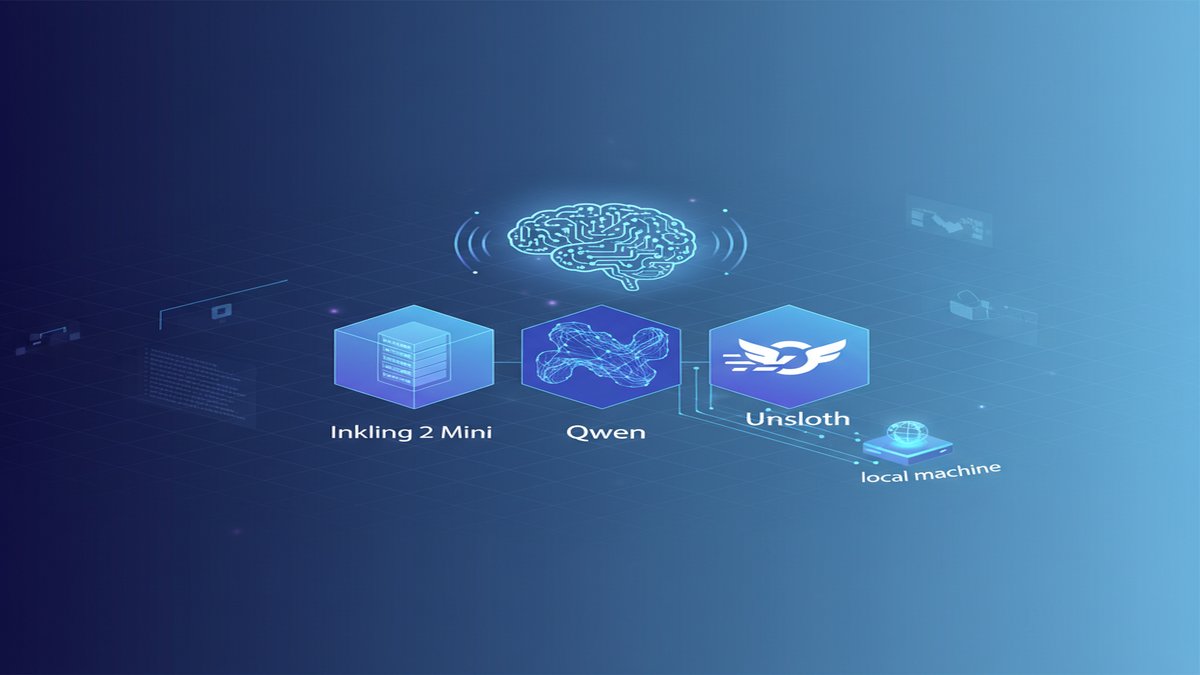
Running powerful large language models locally has become a cornerstone of modern AI development, offering unparalleled privacy, control, and cost savings. As we move through 2026, the ecosystem of tools has matured significantly, making it easier than ever to harness cutting-edge models on consumer-grade hardware. One of the most exciting developments is the ability to run models like the compact yet capable Inkling 2 Mini on your own machine. This tutorial will guide you through the entire process, leveraging Qwen’s robust quantization techniques and the Unsloth optimization framework to achieve impressive performance without the cloud.
Why Run Inkling 2 Mini Locally in 2026?
The push towards local AI is stronger than ever. Concerns about data privacy, the desire to avoid recurring API costs, and the need for latency-free inference are driving developers and businesses to bring AI in-house. Inkling 2 Mini, a model known for its strong reasoning and coding capabilities in a smaller parameter size, is an ideal candidate for local deployment. When combined with the right software stack, it can transform a standard desktop or laptop into a powerful AI workstation, a trend that aligns with broader industry movements towards decentralized computation, much like the innovations we’re seeing in AI-designed CPU architectures.
Prerequisites for Local Deployment
Before we dive into the installation, let’s ensure your system is ready. You will need a machine with a compatible NVIDIA GPU (RTX 3060 with 12GB VRAM or better is recommended for a smooth experience), at least 16GB of system RAM, and a modern operating system like Ubuntu 22.04 LTS or Windows 11 with WSL2 enabled. You must also have Python 3.10 or later and pip installed. The key software components we’ll be using are the Hugging Face Transformers library, Qwen’s quantization tools, and Unsloth. This setup is similar to the requirements for running other popular local models, as detailed in our guide to running Llama 3.1 locally.
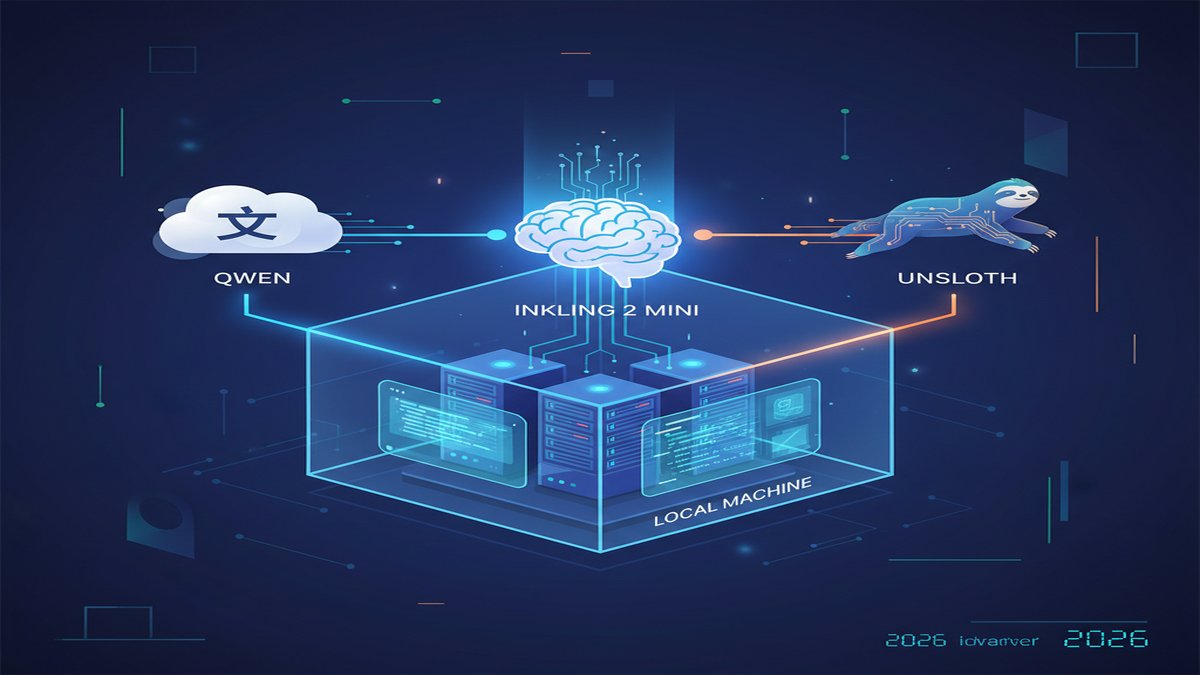
Image: AI-generated
Step 1: Setting Up Your Python Environment
The first step is to create a clean and isolated Python environment to avoid conflicts between library versions. Open your terminal and run the following commands:
python -m venv inkling_env
source inkling_env/bin/activate # On Windows: inkling_env\Scripts\activate
Once your virtual environment is active, update pip to ensure you have the latest version:
Image: AI-generated
pip install --upgrade pip
Step 2: Installing Unsloth and Dependencies
Unsloth is a game-changer for local inference, offering up to a 2x speedup and 70% less memory usage out of the box. Install it along with other essential libraries using the following command:
pip install "unsloth[colab-new] @ git+https://github.com/unslothai/unsloth.git"
pip install --no-deps transformers accelerate huggingface-hub
This command installs Unsloth from its GitHub repository and ensures we have the necessary Hugging Face libraries without causing version conflicts.
Step 3: Downloading and Quantizing Inkling 2 Mini with Qwen
Quantization is crucial for fitting larger models into limited VRAM. Qwen provides excellent tools for this. We’ll use the 4-bit quantized version of Inkling 2 Mini. In your Python script or notebook, use the following code to load the model through Unsloth:
from unsloth import FastLanguageModel
import torch

model, tokenizer = FastLanguageModel.from_pretrained(
 model_name = "unsloth/Inkling-2-Mini",
 max_seq_length = 2048,
 dtype = None,
 load_in_4bit = True,
)
This code snippet tells Unsloth to fetch the 4-bit quantized version of the model, which is perfect for GPUs with 8-12GB of VRAM. For developers looking to integrate this kind of AI into their workflows, tools like n8n can be invaluable for creating automated pipelines.
Step 4: Running Your First Local Inference
With the model loaded, it’s time to generate text. Unsloth uses a standard pipeline for text generation. Here’s a basic example to test your setup:
inputs = tokenizer(
 "[INST] Write a Python function to calculate Fibonacci numbers. [/INST]",
 return_tensors = "pt",
).to("cuda")

outputs = model.generate(**inputs, max_new_tokens=256, use_cache=True)
text_output = tokenizer.batch_decode(outputs)
print(text_output)
You should see the model generate a coherent Python function. This first successful run confirms that your local installation is working correctly.
Step 5: Optimizing Performance and Memory Usage
To get the most out of your setup, you can apply further optimizations. Unsloth allows for easy application of LoRA adapters and other speed enhancements. Adding the following lines after loading the model can yield even better performance:
model = FastLanguageModel.get_peft_model(
 model,
 r = 16,
 target_modules = ["q_proj", "k_proj", "v_proj", "o_proj",
 "gate_proj", "up_proj", "down_proj",],
 lora_alpha = 16,
 lora_dropout = 0,
 bias = "none",
 use_gradient_checkpointing = True,
 random_state = 3407,
 use_rslora = False,
 loftq_config = None,
)
Advanced Use Cases and Integration
Your local Inkling 2 Mini instance is now a powerful tool. You can integrate it into coding assistants, build chatbots that never leak data, or create automated content generation systems. The model excels at code completion and explanation, making it a fantastic partner for developers. For those working in professional coding environments, integrating with an AI-powered IDE like Cursor can create a seamless workflow from local model to code editor.
Troubleshooting Common Issues
If you encounter CUDA out-of-memory errors, try reducing the max_seq_length or using a more aggressive quantization method. Ensure your GPU drivers are up to date. For download issues, check that you are authenticated with Hugging Face if the model requires it. Connection timeouts can often be resolved by using a VPN or retrying the download. The world of local AI is rapidly evolving, sometimes raising complex ethical questions about deployment and use.
Conclusion: Empower Your 2026 Workflow with Local AI
Running Inkling 2 Mini locally with Qwen and Unsloth represents a significant step towards democratizing powerful AI technology. You are no longer tethered to expensive API calls or cloud providers; the power sits directly on your machine, ready to execute complex tasks the moment you need it. This setup provides a perfect balance of performance, efficiency, and control that defines the state of local AI in 2026.
Ready to Explore More AI Models?
For easy access to a wide variety of models without local setup, check out OpenRouter. It provides a unified API for dozens of leading language models, perfect for prototyping and comparing capabilities before committing to a local deployment.
Running local AI models continues to be valuable for developers seeking privacy, cost control, and offline capabilities. The combination of specialized hardware optimization tools like Unsloth with capable open-source models provides accessible options for those wanting to experiment with local AI deployment without relying on cloud services.
What to Read Next
We hope this guide empowers you to harness local AI. For more insights, explore our homepage or dive into our comparison of ChatGPT vs Gemini vs Perplexity for research. Stay updated on the latest in AI by bookmarking our site and subscribing to our newsletter for weekly digest emails.
This article was produced with the assistance of AI tools and reviewed by the AIStackDigest editorial team.