
OpenClaw & AI Agents Expert
Google’s biggest AI video update this quarter didn’t come with a flashy new model name. It came in the form of a quiet but powerful upgrade to a feature already living inside the Gemini app, Flow, and YouTube Shorts: Veo 3.1 Ingredients to Video. Instead of typing a prompt and hoping the model imagines your character correctly, you now feed it up to three reference images — a face, an object, a background — and Veo weaves them into a single, motion-consistent clip.
This matters more than it sounds. Character and object consistency has been the single biggest complaint about generative video since Gen-1 launched. Every studio that has tried to build a recurring character for a series, an ad campaign, or a YouTube Short has hit the same wall: the AI reinvents the character’s face in every new shot. Ingredients to Video is Google’s most direct answer to that problem, and as of this month it also supports native vertical output and up to 4K upscaling — making it genuinely usable for shippable content, not just demos.
What Ingredients to Video Actually Does
Traditional text-to-video generation starts from a blank slate: you describe a scene, and the model imagines every pixel from scratch based on its training data. Image-to-video is a step up — you give it one still frame and ask it to animate that exact scene. Ingredients to Video sits a level above both.
You upload up to three separate reference images, each representing a distinct “ingredient”: a character’s face, a specific product or prop, and a background or texture. Veo 3.1 analyzes each image independently, then composites them into a new scene guided by your text prompt. The result isn’t a slideshow stitching the images together — it’s a single generated clip where the character keeps their face, the product keeps its shape and color, and the background stays visually coherent, all while the camera moves and the scene plays out dynamically.
Google’s product team describes the update as making outputs “more expressive and creative, even with simple prompts.” In practice, that means richer implied dialogue, more natural gesture and expression, and fewer of the stiff, mannequin-like movements that plagued earlier reference-based generation.
Step-by-Step: How to Use It
Here’s the actual workflow, whether you’re working in the Gemini app, Flow, or through the API:
- Gather your ingredients. Pick one to three images. A clean headshot works well for character consistency; a product photo on a plain background works well for objects; a location photo or generated environment works for scene/background ingredients.
- Generate cleaner source images first (optional but recommended). Google explicitly recommends using Nano Banana Pro (Gemini 3 Pro Image) to create your ingredient images before feeding them into Veo. Clean, well-lit, high-resolution source images produce noticeably better consistency than blurry phone photos.
- Upload your ingredients. In the Gemini app or Flow, select “Ingredients to Video” and attach your images in the order you want them prioritized.
- Write a short, action-focused prompt. You don’t need paragraphs. Something like “she picks up the object and walks toward the window as golden light shifts across the room” is usually enough — the model fills in cinematic detail on its own.
- Choose your aspect ratio. This is the newest part of the update: native 9:16 vertical output is now supported specifically for Ingredients to Video, so you can generate mobile-first clips without cropping a horizontal video and losing framing or resolution.
- Pick your resolution. Standard output is solid for quick drafts and social testing. For anything client-facing or broadcast, upscale to 1080p or the new 4K option — Google calls this “state-of-the-art upscaling,” and it’s a meaningful jump in texture detail over the previous 3.1 release.
- Generate, review, iterate. Because the model locks onto your ingredient images rather than reinterpreting a scene from text alone, iterating on camera angle or action while keeping the same character/object pairing is far more reliable than pure text-to-video regeneration.
Where This Actually Shines: Consistency Across Scenes
The headline improvement isn’t the vertical video support — it’s identity and object persistence across multiple generations. If you create a character ingredient once, you can reuse that same reference image in a dozen separate Veo generations and get a recognizably consistent character in every one, even as the setting, lighting, and camera angle change completely.
This unlocks a workflow that was previously the domain of expensive fine-tuned models or manual face-swap tools: episodic short-form content. A creator can build a recurring mascot, host, or narrative character once, then generate an entire week of YouTube Shorts or Reels featuring that same “actor” in different scenes, without retraining anything or paying for a custom LoRA. The same logic applies to product marketing — a beverage brand can lock a bottle’s exact label and shape as an object ingredient, then generate unlimited lifestyle scenes around it for ad testing.
Background and texture consistency works the same way. You can establish a signature environment — a branded studio set, a distinctive location, a stylized texture — as an ingredient and reuse it across an entire content series, giving disparate clips a unified visual identity.
Where Sora 2 Still Has an Edge
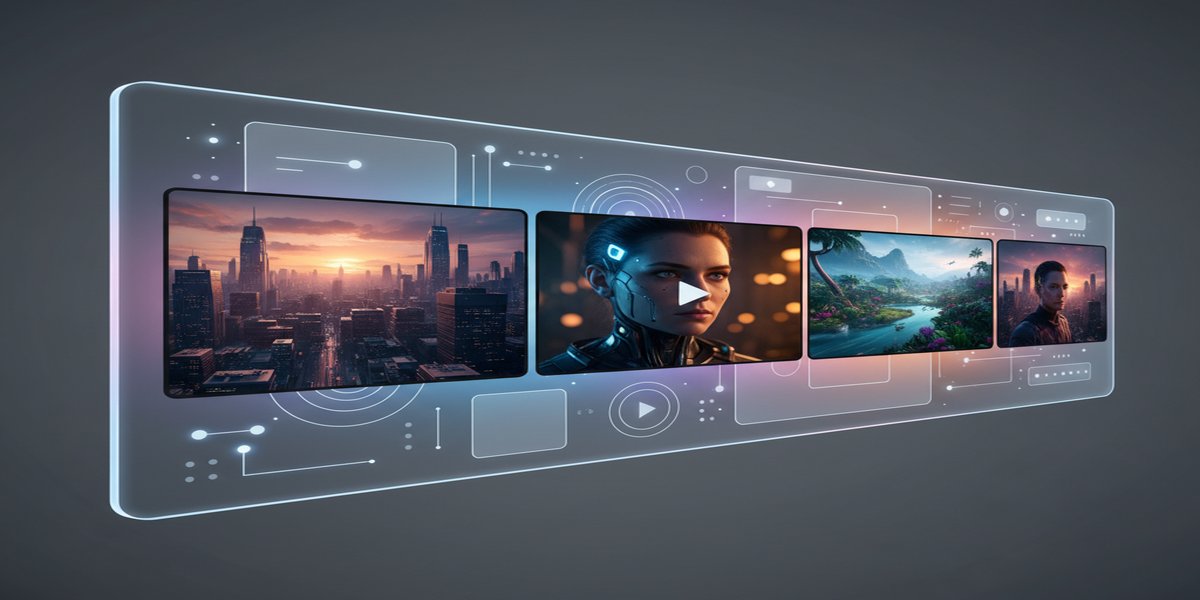
It’s worth being honest about the trade-offs, because Veo 3.1 isn’t winning on every axis. OpenAI’s Sora 2 currently generates longer single clips (up to roughly 25 seconds versus Veo’s shorter default windows) and has an edge in raw physics simulation — how liquids pour, how fabric moves, how objects interact under gravity. For pure physical realism in a single continuous shot, testers still lean toward Sora 2.
Where Veo 3.1 pulls ahead decisively is cost and accessibility. Veo 3.1 Pro runs around $19.99/month for roughly 90 generations, working out to well under a dollar per clip. Sora 2 access now requires at minimum a ChatGPT Plus subscription, with full capability gated behind the $200/month ChatGPT Pro tier — pushing per-video cost into the $4–$24 range depending on settings. For creators who need volume — testing dozens of hooks, variations, or A/B ad creatives — Veo 3.1’s pricing model and native Ingredients workflow make it the more sustainable choice, even if a single hero shot from Sora 2 might edge it out on physical realism.
Practical Prompt Tips
A few things that consistently improve output quality with Ingredients to Video:
- Keep character reference images front-facing and evenly lit — profile shots or heavy shadow confuse identity locking.
- Describe action and camera movement, not appearance — the ingredient images already define what things look like, so re-describing them in the prompt wastes tokens and can conflict with the visual reference.
- When mixing a character and an object ingredient, explicitly state the interaction (“she holds the bottle up to the light”) so the model knows how the two ingredients relate spatially.
- For vertical content, frame your mental “shot” as portrait from the start — thinking in landscape and hoping the 9:16 output crops well produces worse composition than prompting with vertical framing in mind.
Building This Into a Repeatable Pipeline
If you’re producing this kind of content regularly rather than one-off clips, it’s worth wiring Ingredients to Video into an automated pipeline rather than manually uploading images every time. A simple Make.com scenario can watch a folder or spreadsheet for new ingredient sets, trigger the generation call, and route the finished clip straight to your publishing queue. And because Veo, Sora, and other video models are increasingly accessible through unified endpoints via OpenRouter, you can build model-agnostic pipelines that fall back to an alternative generator if one API is rate-limited or down — useful given how quickly pricing and access policies have been shifting between providers this year.
The Bottom Line
Ingredients to Video isn’t a brand-new model — it’s a workflow upgrade that solves the actual problem creators complain about most: keeping characters, products, and settings consistent across multiple AI-generated shots. Combined with native vertical output and 4K upscaling, it turns Veo 3.1 from “impressive tech demo” into a legitimately usable production tool for short-form, mobile-first content. If your current AI video workflow involves regenerating a character a dozen times hoping the face matches, this feature is worth testing today.
What to Read Next
- Google AI Mode vs Traditional Search 2026: The Looming Price Shock Explained
- Best AI Video Tools in September 2026: A Comprehensive Overview
- GPT-6 Astra Review 2026: Hands-On Tests vs Gemini 3.8 Flash Performance
- AI Investment Boom Continues, Ethical Debates Intensify, and US Government Weighs in on Copyright
- Browse all AI Stack Digest articles
Bookmark aistackdigest.com for daily AI tools, reviews, and workflow guides.
This article was produced with the assistance of AI tools and reviewed by the AIStackDigest editorial team.