
💡 Hosting tip: For self-hosted setups, Contabo VPS for self-hosted AI agents offers high-performance VPS at excellent value.
Imagine waking up every morning to a personal assistant that has already scanned your inbox for urgent emails, checked your calendar for the day, and quietly filed away anything that can wait — all before you’ve touched your phone. That’s not science fiction. That’s OpenClaw, and in this guide you’re going to learn exactly how to set it up and put it to work.
OpenClaw is an open-source AI gateway that turns a plain server (or even a Raspberry Pi) into an intelligent, always-on personal assistant. It connects to Telegram, email, calendars, and external tools, then lets you route AI models from providers like OpenRouter through a single unified interface. The result is an automation backbone you own completely — no subscriptions to ten different SaaS platforms, no data leaving your hands.
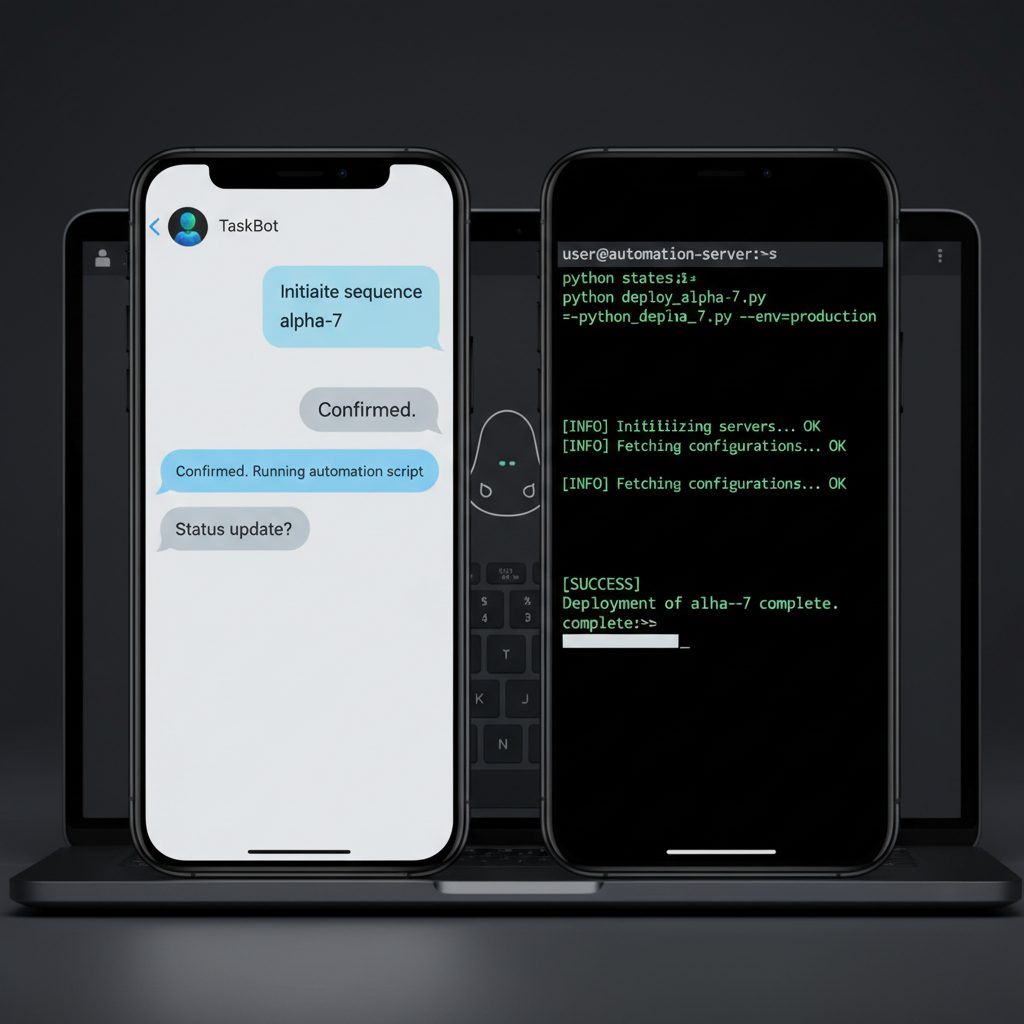
Image: AI-generated
What Makes OpenClaw Different?
There are plenty of automation tools out there. You’ve probably tried Zapier, experimented with Make.com, or cobbled together a few Python scripts that break every time an API changes. OpenClaw takes a different approach: instead of connecting apps to apps, it puts an AI model at the centre of every workflow. You describe what you want in plain language — in a Telegram message, a voice note, or a scheduled prompt — and OpenClaw figures out how to do it.
The architecture is deceptively simple. A Node.js gateway process runs on your server and exposes a plugin system. Plugins handle channels (Telegram, Discord, email), tools (calendar, web search, shell execution), and AI providers. You configure everything in a single YAML or JSON file, and the gateway orchestrates the rest. There’s no drag-and-drop canvas, no monthly seat fees, and no vendor lock-in. If you can write a JSON object, you can extend OpenClaw.
The skills system is where things get genuinely powerful. A skill is a markdown file — literally a SKILL.md — that gives the AI specific instructions for a domain. Want a skill that manages your email triage? Write one. Want a skill that monitors a GitHub repository and summarises new issues every morning? Write one. The AI reads the skill file at runtime and follows it, turning a general-purpose language model into a specialist that knows your exact workflow.
Getting OpenClaw Running in Under 20 Minutes
You’ll need a Linux server with Node.js 18 or later. A small VPS — even a budget Contabo VPS with 2 GB of RAM — is more than enough to run OpenClaw alongside a few other services. If you’re testing locally, your laptop works fine too.
Install the gateway with npm:
npm install -g openclaw
openclaw gateway start
That single command starts the gateway process and creates a default workspace at ~/.openclaw/workspace. Now open that directory — it’s going to become your second brain.
The first file to edit is the gateway config (usually at ~/.openclaw/config.json). You’ll add your AI provider key, your Telegram bot token, and any plugins you want to activate. Here’s a minimal config that gets you a working Telegram bot backed by an OpenRouter model:
{
  "ai": {
    "provider": "openrouter",
    "model": "anthropic/claude-sonnet-4",
    "apiKey": "sk-or-..."
  },
  "plugins": {
    "telegram": {
      "token": "YOUR_BOT_TOKEN"
    }
  }
}
Restart the gateway with openclaw gateway restart and send your bot a message on Telegram. You should get an intelligent reply within seconds. That’s your foundation.
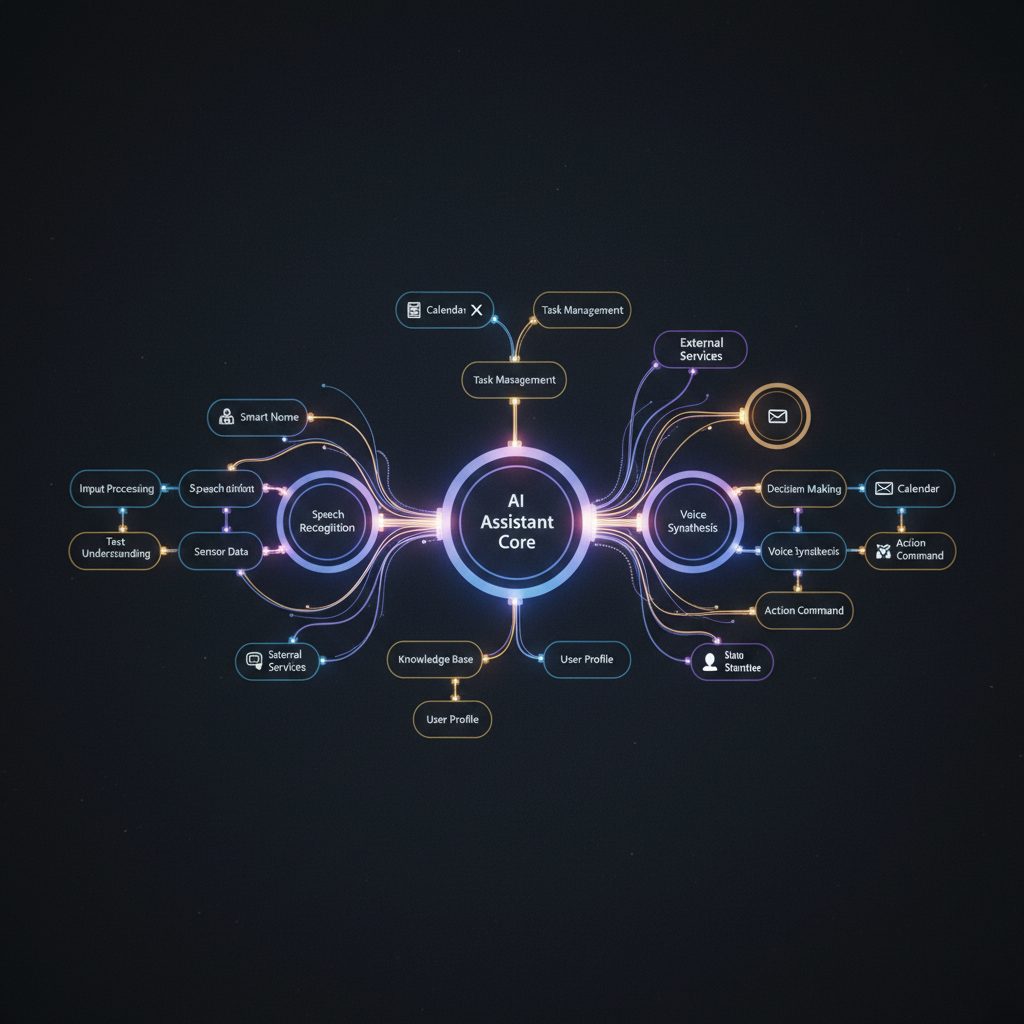
Image: AI-generated
Building Your First Automation: The Daily Briefing
The daily briefing is the classic first OpenClaw project, and for good reason — it demonstrates every major feature in one tidy package. Here’s what we’ll build: every weekday at 8 AM, OpenClaw will check your email for unread messages, look at your calendar for the day’s events, and send you a concise summary via Telegram.
Start by creating a skill file at ~/.openclaw/workspace/skills/daily-briefing/SKILL.md:
# Daily Briefing Skill

You are generating a morning briefing for the user.

1. Use the `himalaya` email tool to list unread messages from the last 24 hours.
   Summarise any that look urgent or require action.
2. Check the calendar for today's events.
3. Check the weather for the user's location.
4. Format everything as a concise Telegram message — bullet points,
   no more than 200 words total.
5. Deliver the message to the main Telegram channel.

Tone: warm, efficient, no filler phrases.
Now create a cron job that fires the skill. OpenClaw has a built-in cron scheduler accessible from the CLI or via the agent itself. From Telegram, simply tell your bot:
“Set up a daily briefing every weekday at 8 AM using the daily-briefing skill.”
OpenClaw will create the cron entry, store it persistently, and from that point forward your morning briefing arrives without any further effort on your part. You can view, edit, or delete cron jobs at any time by asking the bot directly — no command-line spelunking required.
Going Deeper: Sub-Agents and Parallel Workloads
One of OpenClaw’s most underused features is its sub-agent system. When a task is too complex or too slow for a single AI turn, OpenClaw can spawn isolated sub-agents — separate model instances that run in parallel and report back when finished. This is how you build serious automation without grinding the main session to a halt.
A practical example: suppose you run a small online business and want OpenClaw to monitor your competitor’s pricing page every day, compare it against your own prices, and flag any significant changes. This involves web fetching, data comparison, and decision-making — exactly the kind of multi-step task that benefits from a sub-agent.
Create a skill file that describes the task, then set a cron job to trigger it as an isolated agent turn. The sub-agent will execute the full workflow independently, then push a summary to your Telegram when it’s done. Your main session stays responsive throughout, and you get the result delivered like a notification.
The skill file might look like this:
# Competitor Price Monitor

You are monitoring competitor pricing for the user.

1. Fetch the target URL from TOOLS.md (key: competitor_pricing_url).
2. Extract all price data from the page.
3. Compare against the stored prices in memory/pricing-baseline.json.
4. If any price changed by more than 5%, send a Telegram alert with details.
5. Update memory/pricing-baseline.json with the latest prices.
6. Log the run in memory/price-monitor-log.md.
That’s it. Forty lines of markdown replace what would previously have required a Python script, a database, a cron daemon, and a notification service all wired together manually.
Connecting to External Workflows
OpenClaw doesn’t have to live in isolation. Because the gateway exposes a standard REST API, you can fire events into it from any external system — a webhook from your e-commerce platform, a form submission from your website, or a trigger from an automation platform. OpenClaw becomes the AI brain that sits inside a broader workflow.
A common pattern: use an automation platform to handle the plumbing (form submissions, API polling, database writes) and have it POST events to OpenClaw’s webhook endpoint whenever something needs intelligence. OpenClaw then reads the event, applies the appropriate skill, and takes action — replying to a customer, updating a file, sending an alert.
The workspace’s TOOLS.md and MEMORY.md files serve as a persistent knowledge base. Skills can read from and write to these files, giving the AI a genuine memory that persists across sessions and restarts. Over time, OpenClaw genuinely learns the specifics of your setup — your preferences, your regular contacts, your recurring tasks.
Practical Tips for Getting the Most Out of OpenClaw
Write your SOUL.md carefully. The SOUL.md file defines your AI assistant’s personality and working style. A well-written soul file is the difference between an assistant that sounds like a corporate auto-responder and one that feels genuinely useful. Be specific: describe the tone you want, what you expect it to do without asking, and what it should always check before acting externally.
Keep skills focused. A skill that tries to do too many things becomes unreliable. Write one skill per domain — email triage, calendar management, research, monitoring — and let OpenClaw choose the right skill for each task automatically.
Use the heartbeat system for passive monitoring. The heartbeat feature sends a periodic prompt to the AI so it can check in on things proactively. Configure HEARTBEAT.md with a short checklist — check email, check calendar, check weather — and OpenClaw will surface anything important a few times a day without you having to ask.
Commit your workspace to git. Your OpenClaw workspace is plain text files. That means you can version-control it with git, back it up to any repository, and restore it on a new server in minutes. Treat it like a codebase: commit changes, write meaningful commit messages, and you’ll always be able to roll back if a skill misbehaves.
Layer models strategically. Not every task needs the most powerful (and expensive) model. Use a fast, cheap model for heartbeat checks and simple routing, and reserve the heavy model for complex reasoning tasks. OpenClaw lets you specify the model per cron job, per skill, or per session, so you can dial in exactly the right cost-capability tradeoff for each workflow.
What to Build Next
Once your daily briefing is running and you’re comfortable with the skill system, the natural next step is to look at everything in your life that currently requires you to remember to do something — and automate the remembering. Weekly project summaries, invoice reminders, social media drafts queued for review, health check alerts for your servers — all of these are straightforward OpenClaw projects once you have the foundation in place.
The community around OpenClaw is growing fast, and the ClawHub skill repository means you can install pre-built skills for common tasks in seconds. But the real power comes from building skills that match your exact situation — because nobody else has your exact combination of tools, preferences, and workflows. That’s the whole point: a truly personal AI assistant, running on your hardware, with your rules.
Start small. Get the daily briefing working. Then add one automation per week. In a month, you’ll have an assistant that handles more of your cognitive overhead than you thought possible — and you’ll wonder how you ever managed without it.
Image: AI-generated
This article was produced with the assistance of AI tools and reviewed by the AIStackDigest editorial team.