
AI Tools & Automation Specialist
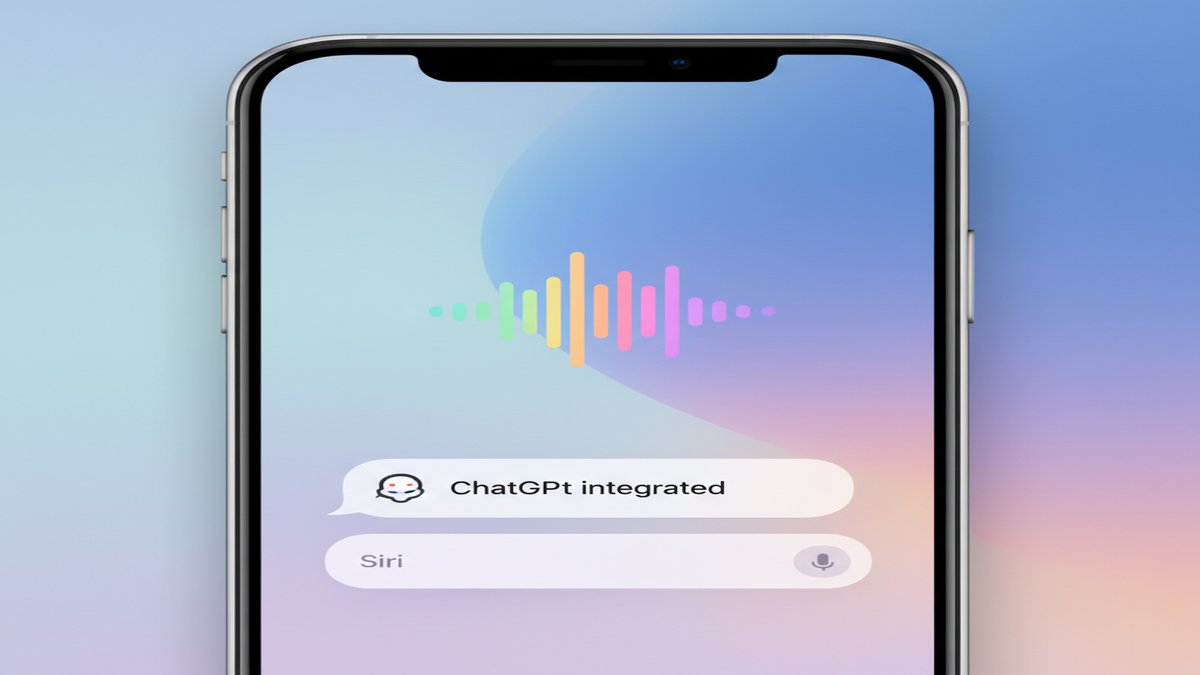
Siri has been Apple’s voice assistant since 2011, but in 2026 it’s no longer the only AI you can use on your iPhone. Apple’s own ChatGPT integration — shipped in iOS 18.2 — lets Siri hand off difficult questions to a much more capable model, and there are real workarounds for getting Claude and Gemini into your daily workflow too.
This guide covers what actually works today, what is still vaporware, and the exact steps to set it all up. No invented frameworks, no speculative “code reveals” — just the documented features you can use right now.
What Apple Actually Ships: ChatGPT in Siri

Apple’s ChatGPT integration arrived with iOS 18.2 (released December 2024) as part of Apple Intelligence. It is not a full Siri replacement — Siri still handles device controls, timers, calls, and system tasks — but it changes what happens when you ask Siri a question it can’t answer well. Instead of returning a list of web links, Siri can now pass the question directly to ChatGPT and read back a real answer.
This is a genuine, documented feature. Apple’s own iPhone user guide describes exactly how to enable it.
Requirements
- iPhone 15 Pro or later (or iPhone 16 series) — Apple Intelligence only runs on these models
- iOS 18.2 or later
- Apple Intelligence must be enabled in Settings
- Device language set to English (US, UK, Australia, Canada, or Ireland) — or region workaround applied
How to Enable ChatGPT in Siri (Step-by-Step)

The real Settings path — not the invented one you’ll find in some guides — is:
- Open Settings on your iPhone.
- Tap Apple Intelligence & Siri.
- Scroll down to the Extensions section and tap ChatGPT.
- Tap Set Up.
- Choose either Enable ChatGPT (no account needed) or Use ChatGPT with an Account (sign in for history and advanced features).
That’s it. No third-party apps required. Once enabled, you can say “Ask ChatGPT…” to Siri directly — using that phrase skips the confirmation prompt Apple would otherwise show before handing off to ChatGPT.
Account vs. No Account
Skipping the account is faster and more private. Apple states that without an account, OpenAI must not store your request and must not use it to train its models. Signing in links the request to your OpenAI account and OpenAI’s standard privacy policy applies instead.
What You Can Do With ChatGPT + Siri

- Ask complex questions: “Ask ChatGPT to explain quantum entanglement in plain English” — Siri passes it and reads back the answer.
- Writing Tools: In any text field on iOS, tap the Writing Tools option and use the Compose tab to generate or rewrite text via ChatGPT.
- Visual Intelligence: Long-press the Camera Control button (iPhone 16 series), point at anything, and tap Ask — ChatGPT analyses what the camera sees.
- Screenshot analysis: Take a screenshot, tap it, and use the Visual Intelligence option to send it to ChatGPT for explanation or summarisation.
What About Claude and Gemini?
Here’s where most guides mislead you. Claude and Gemini do not have native Siri extensions. No third-party assistant other than ChatGPT can currently register as a Siri extension on any shipping iOS version. If you’ve read articles claiming otherwise, they’re either describing unreleased beta strings or fabricating features entirely.
That said, there are two real workarounds:
1. Siri App Intents (Claude)
Anthropic ships an App Intent called “Ask Claude” inside the Claude iOS app. Once the app is installed, you can say “Ask Claude [your question]” to Siri, and it will open Claude with your query pre-filled. It’s not seamless — you’re handed off to the app — but it works without any setup beyond installing Claude from the App Store.
2. Action Button (iPhone 15 Pro / 16 Series)
You can assign the Action button to launch any app directly — including Claude, Gemini, or ChatGPT. Go to Settings → Action Button, choose Shortcut, and select an “Open App” shortcut for your preferred AI. One press gets you straight into it.
3. Apple Shortcuts Workaround
For older iPhones without an Action button, you can build a Shortcut that opens your preferred AI app and add it to your Home Screen or Lock Screen. This isn’t Siri integration, but it puts Claude or Gemini one tap away. Here’s a simple shortcut setup:
Shortcuts app → New Shortcut → Add Action → Open App → Select Claude (or Gemini)
→ Add to Home Screen → Name it "Claude"
Which Should You Use?
If you want the most seamless experience with the least setup, ChatGPT via Apple Intelligence is the clear answer — it’s native, private when used without an account, and deeply integrated with Writing Tools and Visual Intelligence.
If you prefer Claude’s tone and reasoning style, the “Ask Claude” App Intent covers most conversational use cases, and the Action button shortcut keeps it one press away.
Gemini works best via the standalone app or through Google’s own widgets — there’s no Siri hook worth relying on yet, but Google has indicated deeper Apple integration is coming.
The Bottom Line
You can meaningfully upgrade your iPhone’s AI capabilities right now — no jailbreak, no beta software, no invented frameworks. Enable ChatGPT in Apple Intelligence for the native integration, install Claude for its App Intent shortcut, and configure your Action button for one-press access to whichever model you trust most.
The “full Siri replacement” that replaces Apple’s assistant at the OS level doesn’t exist yet on any shipping iOS. What you have is better AI alongside Siri — and in practice, that’s enough.
This article was produced with the assistance of AI tools and reviewed by the AIStackDigest editorial team.