
OpenClaw & AI Agents Expert
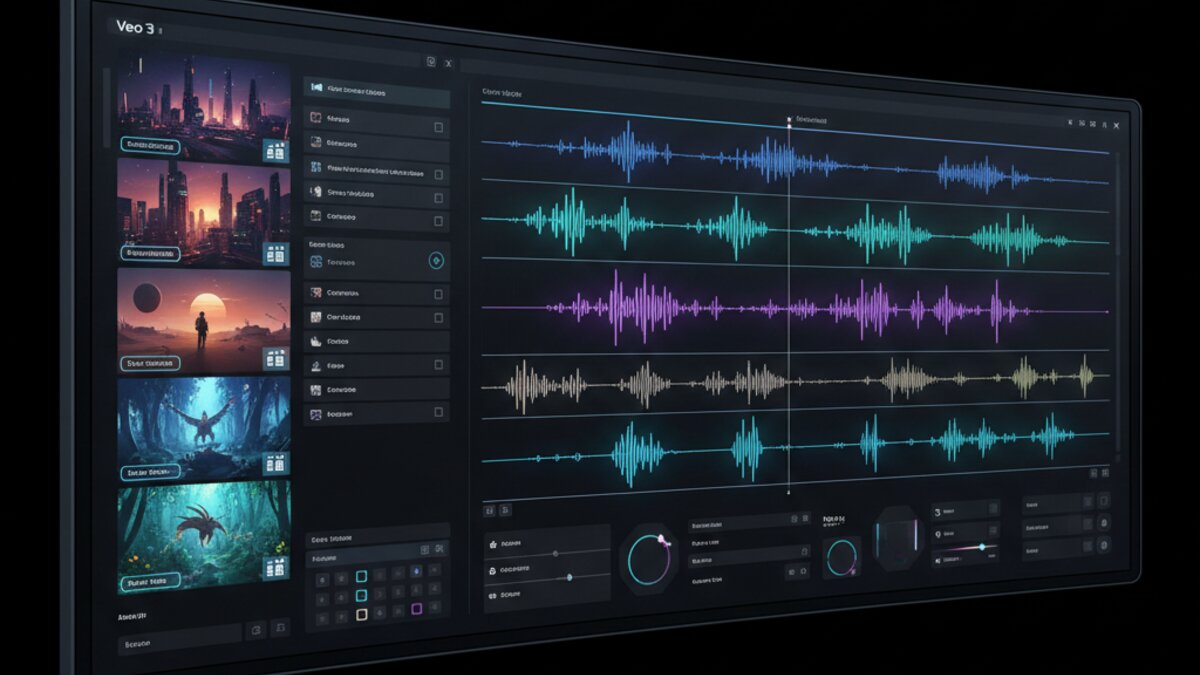
Google’s Veo 3 has quietly become one of the most powerful AI video generators available in 2026 — and its built-in audio generation capability sets it apart from every other tool on the market. Whether you’re a content creator, marketer, filmmaker, or just someone curious about what AI video can do, this guide walks you through everything you need to know to start generating stunning cinematic videos with Veo 3 from scratch.
What Is Google Veo 3?
Veo 3 is Google DeepMind’s third-generation AI video model, released in mid-2026. It represents a major leap over its predecessors, offering:
- Native synchronized audio — dialogue, ambient sound, and music generated alongside the video
- 8-second clips (extendable to longer sequences via chaining)
- 1080p resolution with support for vertical (9:16) output for Shorts and Reels
- Cinematic camera controls — prompt-driven dolly shots, pans, close-ups, and more
- Strong prompt adherence — Veo 3 is notably good at following complex multi-element instructions
Veo 3 is available through Google Flow (Google’s AI filmmaking tool), Google AI Studio (via API for developers), and select Vertex AI enterprise tiers. Access is rolling out gradually as of June 2026.
How to Access Veo 3
There are three main ways to use Veo 3 right now:
1. Google Flow (Consumer)
Google Flow is the easiest entry point. It’s a web-based filmmaking studio that wraps Veo 3 in a user-friendly interface. To access it:
- Visit flow.google.com
- Sign in with your Google account
- Join the waitlist or use if you have Google One AI Premium
- Start a new project and select Video Generation
2. Google AI Studio (Developer API)
Developers and power users can access Veo 3 directly through the Gemini API in Google AI Studio. This gives you programmatic control for building custom pipelines and apps:
- Go to aistudio.google.com
- Create an API key under Get API Key
- Use the
veo-003model endpoint in your API calls - Batch and automate video generation at scale
For those building AI-powered workflows and integrations, routing your API calls through OpenRouter gives you unified access to Veo 3 alongside dozens of other top models — a convenient single API key for multi-model pipelines.
3. Vertex AI (Enterprise)
Enterprise users on Google Cloud can access Veo 3 through Vertex AI Model Garden, with full SLA support, higher rate limits, and private VPC deployment options.
Writing Effective Prompts for Veo 3
The quality of your output depends almost entirely on how well you write your prompt. Veo 3 excels at following rich, descriptive instructions. Here’s a framework for structuring your prompts:
The 5-Part Prompt Formula
[Subject] + [Action] + [Setting/Environment] + [Camera Style] + [Mood/Atmosphere]Example prompt (basic):
A red fox walking through a misty forest at dawn, slow tracking shot, cinematic, golden hour light filtering through treesExample prompt (with audio):
A street musician playing jazz saxophone on a rain-soaked cobblestone alley at night, close-up shot slowly pulling back to reveal the city skyline, warm lamp light, sound of rain mixing with the saxophone melody, cinematic noir atmosphereNotice how the second prompt specifies the audio environment — Veo 3 will generate synchronized sound based on those cues. This is one of its most powerful differentiators.
Camera Movement Keywords That Work
- dolly in / dolly out — smooth push toward or away from subject
- crane shot — sweeping upward or downward arc
- handheld — adds organic, slightly shaky movement
- tracking shot — camera follows subject laterally
- aerial drone — bird’s-eye view with descending motion
- static wide — locked-off, cinematic establishing shot
Step-by-Step: Generating Your First Video in Google Flow
Let’s walk through creating a complete video clip using Google Flow’s interface:
Step 1 — Open a New Project
Log in to Google Flow and click New Project. Give it a name and select your target aspect ratio — 16:9 for YouTube/landscape or 9:16 for Shorts/Reels/TikTok.
Step 2 — Choose Your Generation Mode
Veo 3 in Flow offers three generation modes:
- Text to Video — generate directly from a written prompt
- Image to Video — animate a still image you upload
- Video to Video — use an existing clip as a motion reference
For beginners, start with Text to Video.
Step 3 — Write Your Prompt
Use the 5-part formula above. Be specific about subject, action, environment, camera movement, and mood. Don’t be afraid to write long prompts — Veo 3 handles detail well. Enable the Generate Audio toggle if you want synchronized sound.
Step 4 — Set Duration and Resolution
Choose between 4-second and 8-second clips. For most use cases, 8 seconds gives you more flexibility in editing. Select 1080p for final output quality.
Step 5 — Generate and Iterate
Click Generate. Veo 3 typically delivers results in 30–90 seconds depending on server load. Review the output. If you’re not happy with a specific element — say, the camera movement — refine just that part of your prompt and regenerate. The system maintains your other settings.
Step 6 — Export and Edit
Download your clip as MP4. Flow also includes a basic timeline editor where you can chain multiple clips into a longer sequence, add text overlays, and adjust audio levels before exporting a final cut.
Pro Tips for Better Results
- Avoid over-crowded scenes: Too many subjects or actions in one prompt can confuse the model. One or two focal points work best.
- Reference film styles: Phrases like “shot on 35mm film,” “IMAX cinematography,” or “inspired by Wong Kar-wai” push the visual style effectively.
- Use negative prompting: In API mode, you can pass negative prompts to avoid unwanted elements (e.g., “no text, no watermarks, no CGI sheen”).
- Chain short clips: For storytelling, generate 5–8 individual 8-second clips and assemble them in a tool like DaVinci Resolve or CapCut for a seamless short film.
- Specify time of day and weather: “Golden hour,” “overcast midday,” or “neon-lit night rain” dramatically change the feel of a scene.
Veo 3 vs. Alternatives: When to Use What
Veo 3 isn’t right for every use case. Here’s a quick breakdown:
- Veo 3 — Best for cinematic quality + synchronized audio in a single generation. Ideal for short films, ad spots, and social media content with sound.
- Runway Gen-4 — Better for consistent character identity across shots; the go-to on professional film sets.
- Kling 3.0 — Superior motion physics and native 4K/60fps; great for action sequences and product videos.
- Pika 2.2 — Best for quick social media clips and fun stylized effects with a lower learning curve.
For teams running mixed-tool pipelines and managing costs across multiple providers, Make.com offers powerful automation workflows that can orchestrate AI video generation, post-processing, and publishing in a single no-code pipeline.
Common Mistakes to Avoid
- Generic prompts: “A beautiful sunset” will produce generic results. “A time-lapse of storm clouds rolling over the Atacama Desert at dusk, wide aerial shot, dramatic shadows” will not.
- Expecting continuity between clips: Veo 3 doesn’t maintain character or scene continuity across separate generations. Plan your shots as standalone moments.
- Ignoring the audio toggle: The audio generation is one of Veo 3’s biggest selling points. Always experiment with it — even ambient sound transforms the perceived quality of a clip.
- Forgetting about vertical format: If you’re creating for Instagram Reels or TikTok, switch to 9:16 at the start. Cropping a 16:9 clip to vertical always loses quality.
Watch It in Action
If you’re more of a visual learner, this hands-on tutorial covers the full Google Veo 3 workflow end-to-end — from writing your first prompt to exporting a finished clip:
Final Thoughts
Google Veo 3 is a genuine step-change for AI video. The synchronized audio alone makes it feel like a different category of tool compared to what was available even six months ago. If you’ve been holding off on exploring AI video because previous-generation tools felt too robotic or limited, now is the time to dive in.
Start simple: one clear subject, one action, one environment. Master that, then layer in camera movement and audio direction. Within a few sessions, you’ll be producing clips that would have required a full production crew two years ago.
The creative ceiling with Veo 3 is remarkably high. The only real limit right now is your imagination — and your prompt-writing skills.
What to Read Next
- AI Education Policy in Schools 2026: A Comprehensive Guide to Implementation and Best Practices
- How to Synthesize Research and Craft Compelling Narratives with AI in 2026: A Step-by-Step Guide
- How to Avoid AI Branding Backlash in 2026: A Strategic Guide for Businesses
- OpenAI Transforms Healthcare AI, Midjourney Expands to Medical Ultrasound
- Browse all AI Stack Digest articles
Bookmark aistackdigest.com for daily AI tools, reviews, and workflow guides.
This article was produced with the assistance of AI tools and reviewed by the AIStackDigest editorial team.